



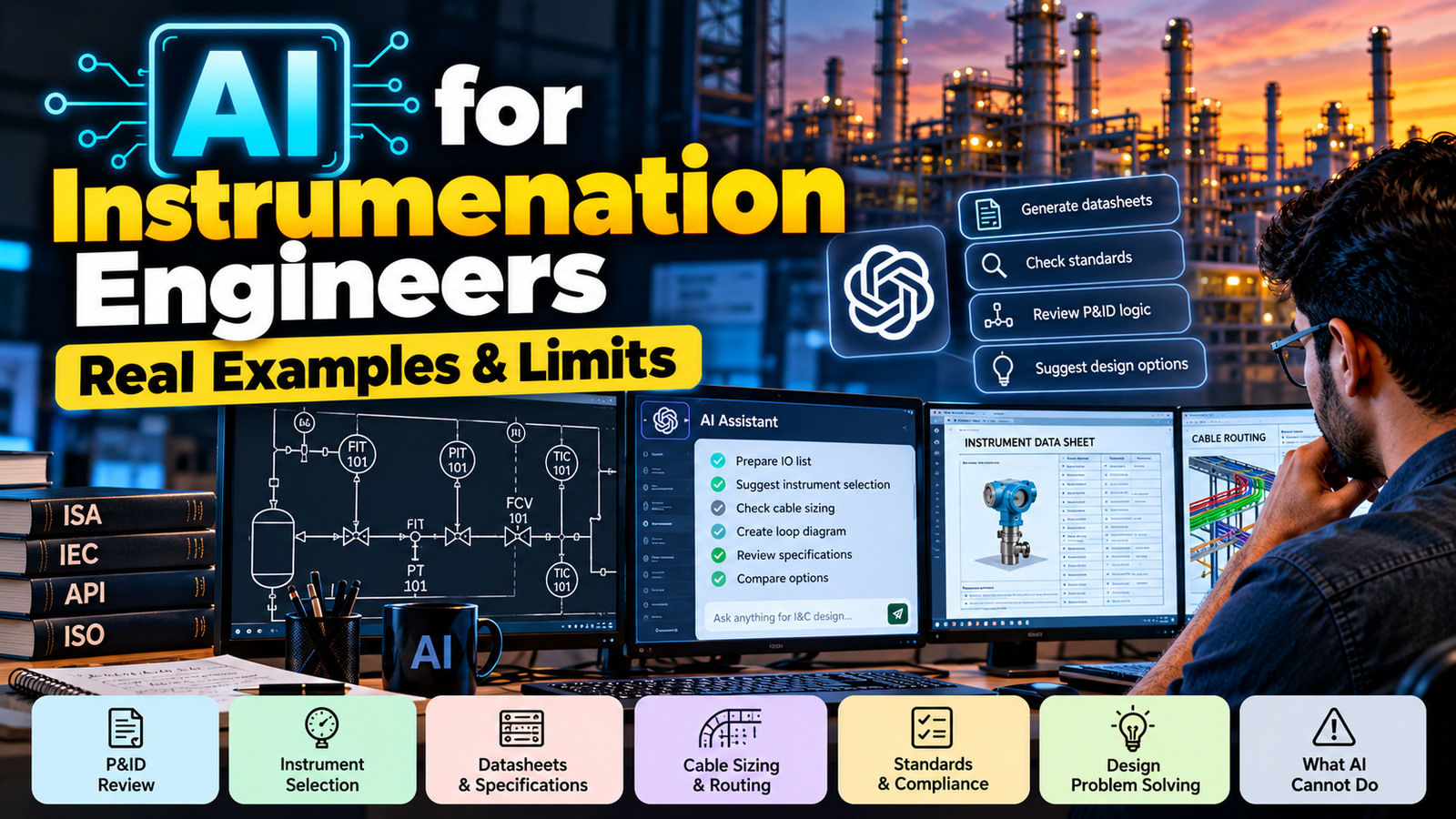
AI for Instrumentation Engineers · Practical guide
VLOOKUP said #N/A. The tags were identical.
A practical take on AI for instrumentation engineers: one Copilot formula that compares three project-phase sheets, plus the line AI should never cross.
This desk task is the best example I have of AI for instrumentation engineers in practice. When I was given three Excel sheets, the question sounded simple: what has changed in the current sheet compared to the other two?
The sheets came from three project phases, so the instruments, services and loops were the same. The only difference was a phase code inside every tag: 01, 02 and 03.
Most engineers would open VLOOKUP and compare sheet by sheet. But VLOOKUP says “No Match” for almost every tag, even when you can see the tags are the same instruments.
So I went down a different path. I asked Copilot for a smarter lookup formula that ignores the phase code and compares all three sheets at once. As a result, I saved a huge amount of time.
In this guide to AI for instrumentation engineers, I’ll show you how the formula works, where else I use AI, and the line I never cross.
What you’ll take away
Why VLOOKUP fails when tags carry a phase code
One formula that flags new, changed and deleted tags
A Case 1/2/3 rule and a checking routine for AI output
Whether AI will replace instrumentation engineers
01Context
AI for Instrumentation Engineers: Where It Actually Fits
Let’s look at what our desk work actually looks like. A big share of it isn’t engineering judgement but data handling: instrument indexes, datasheets, I/O lists, cable schedules, vendor comments, TBE tables and revision comparisons.
So that’s exactly where AI for instrumentation engineers earns its place. Not as an engineer, but as a very fast assistant that never gets tired of Excel.
| Desk task | AI’s role | Who owns the answer |
|---|---|---|
| Instrument index / I/O list revision comparison | Builds formulas | You |
| Datasheet review against project spec | Flags mismatches | You |
| TBE matrix preparation | Structures offers | You |
| Technical queries and emails | First draft | You |
| Calculations (sizing, WFC, voltage drop) | Cross-checks only | You + validated tool |
| SIL verification, safety decisions | Not used | You + independent verifier |
Where AI fits in typical I&C desk work
Look at the last column, because it never changes. Whatever AI produces, the engineer whose name goes on the document still owns it.
02Worked example
Real Example: How Instrumentation Engineers Can Use AI in Excel
This example shows AI for instrumentation engineers at its most practical, because it has a real desk problem, a real formula and a result you can check.
The Problem: Same Tags, Different Phase Code
Here’s my three-sheet instrument index comparison, shown with simplified sample data so that you can follow it. The real sheets had far more tags and columns, but a few rows are enough to show the logic. Sheet P01 is the Phase 01 reference, while sheet P03 is the current one.
| A: Tag No | B: Service | C: Instrument Type | D: Range | E: I/O |
|---|---|---|---|---|
| 01-FT-1001 | Feed gas flow | DP flow transmitter | 0–5000 Nm³/h | AI |
| 01-PT-1002 | Separator pressure | Pressure transmitter | 0–40 barg | AI |
| 01-LT-1003 | Separator level | DP level transmitter | 0–1500 mm | AI |
| 01-XV-1004 | Inlet shutdown valve | On-off valve | – | DO Deleted |
Sample data: the red row no longer exists in Phase 03.
| A: Tag No | B: Service | C: Instrument Type | D: Range | E: I/O |
|---|---|---|---|---|
| 03-FT-1001 | Feed gas flow | DP flow transmitter | 0–6000 Nm³/h | AI |
| 03-PT-1002 | Separator pressure | Pressure transmitter | 0–40 barg | AI |
| 03-LT-1003 | Separator level | Guided wave radar | 0–1500 mm | AI |
| 03-TT-1005 | Separator temperature | Temperature transmitter | 0–150 °C | AI New |
Sample data: amber cells changed, while the blue row is new.
For you and me, 01-FT-1001 and 03-FT-1001 are the same feed gas flow transmitter. For VLOOKUP, however, they are two completely different text strings. VLOOKUP looks for an exact match of the full tag, so it returns #N/A for every row.
What VLOOKUP sees
01-FT-1001 ≠ 03-FT-1001
#N/A
What you see
FT-1001 = FT-1001
Same transmitter
The formula isn’t wrong, but the lookup key is.
The Fix: Compare on the Base Tag, Not the Full Tag
The fix is simple when you see it. Strip the phase code from every tag, compare on what’s left, and then check each attribute column for changes.
- 1Build a base tag: 03-FT-1001 becomes FT-1001.
- 2Then find the same base tag in the reference sheet.
- 3If it isn’t there, the tag is New
- 4If it is there, compare every attribute column and list the ones that Changed
- 5Finally, run the check the other way round to catch Deleted tags.
How to Ask Copilot for It
If you want a good formula from Copilot, describe your data the way you’d brief a new engineer: the sheet names, the column layout, one real example of the tag format and the exact output you want back.
A vague request like “compare my sheets” gets you a vague formula. In contrast, a specific brief gets you something you can actually use.
The Formula, Step by Step
Here’s the logic rebuilt on the sample sheets so you can follow every line. It goes in cell P03!F2, and then you fill it down.
=IF($A2 = "", "",
  LET(
    key,     TEXTAFTER($A2, "-"),
    refTags, TEXTAFTER(P01!$A$2:$A$500, "-", , , , ""),
    pos,     XMATCH(key, refTags),
    oldRow,  INDEX(P01!$B$2:$E$500, pos, 0),
    newRow,  $B2:$E2,
    headers, $B$1:$E$1,
    changed, TEXTJOIN(", ", TRUE, IF(oldRow <> newRow, headers, "")),
    IF(ISNA(pos), "NEW tag",
       IF(changed = "", "No change", "Changed: " & changed))
  )
)
What each line does:
keyTEXTAFTER cuts everything up to the first hyphen, so 03-FT-1001 becomes FT-1001.refTagsThe same cut applies to the whole tag column of P01, while the empty last argument stops blank rows from throwing errors.posXMATCH finds the row of the base tag in P01, so no match means the tag is new.oldRow / newRowThese hold the attribute values (columns B to E) for that tag, so the two rows can be compared.changedIt compares the two rows column by column and then joins the header names of whatever differs.final IFIf the tag is missing, it returns “NEW tag”; otherwise it returns “No change” or “Changed:” plus the column names.
| Tag (P03) | Result vs P01 |
|---|---|
| 03-FT-1001 | Changed Range |
| 03-PT-1002 | No change |
| 03-LT-1003 | Changed Instrument Type |
| 03-TT-1005 | New tag |
Comparison result on the sample data
Also, to compare against Phase 02, copy the formula into column G and replace P01 with P02. Now your current sheet shows both references side by side, and you can see at a glance whether a change happened between 01 and 02 or only in 03.
Before you paste a multi-line formula, press F2 on the cell or click in the formula bar. If you paste straight onto a cell, Excel can split the lines across several rows.
Also, TEXTAFTER, TEXTBEFORE, XMATCH and LET need Excel for Microsoft 365, Excel for the web or Excel 2024. On older versions, use the helper-column method instead.
Don’t Forget Deleted Tags
Most people miss this one, because the formula above only looks at tags that exist in the current sheet. Still, a tag that disappeared between phases is a change too, and it often matters most for your I/O count and cable schedule.
If you put this in any empty cell on a summary sheet, it spills a list of every P01 tag that no longer exists in P03:
=LET(
  refTags, P01!$A$2:$A$500,
  refKeys, TEXTAFTER(refTags, "-", , , , ""),
  curKeys, TEXTAFTER(P03!$A$2:$A$500, "-", , , , ""),
  FILTER(refTags, (refKeys <> "") * ISNA(XMATCH(refKeys, curKeys)),
         "No deleted tags")
)
On the sample data, it returns 01-XV-1004 Deleted. The inlet shutdown valve is gone from Phase 03, and that’s exactly the kind of change you want flagged before someone asks about a missing DO channel.
Case 1 / Case 2 / Case 3: Where Your Phase Code Sits
Every project has its own tagging philosophy, so the base-tag line changes depending on where the phase code sits. Then swap the key and refTags lines to match your case.
| Case | Tag format | Base-tag formula | Result |
|---|---|---|---|
| Case 1: Prefix | 01-FT-1001 | =TEXTAFTER(A2,"-") | FT-1001 |
| Case 2: Suffix | FT-1001-01 | =TEXTBEFORE(A2,"-",-1) | FT-1001 |
| Case 3: In the middle | FT-01-1001 | =TEXTBEFORE(A2,"-")&"-"&TEXTAFTER(A2,"-",2) | FT-1001 |
Base-tag formula for each tag format, so pick the row that matches your project
If your tags have no separator at all (for example 01FT1001) and the phase code is always two digits at the start, =MID(A2,3,100) does the job.
Whichever case you use, apply the same extraction to both the current tag (key) and the reference column (refTags). Otherwise, you’ll be back to “No Match” everywhere.
No Excel 365? Use a Helper Column
If your company is still on an older Excel version, the same idea works with classic functions. In that case, add a helper column F in both sheets with the base tag:
=TRIM(MID(A2, FIND("-", A2) + 1, 100))
Then, in P03, check one attribute at a time. For example, this one checks the Range column (D):
=IF(ISNUMBER(MATCH(F2, P01!$F:$F, 0)),
    IF(D2 = INDEX(P01!$D:$D, MATCH(F2, P01!$F:$F, 0)), "Same", "Changed"),
    "NEW tag")
On the sample data, 03-LT-1003 shows “Same” with this version, because only the Range column is checked. The instrument type changed from DP to guided wave radar, but this formula misses it completely. So you’d need one formula per column, and that is why I prefer the all-column version above.
Check the Output Before You Trust It
Copilot gave me the formula, but it didn’t take over the responsibility. Before any comparison result leaves my desk, I reconcile the counts:
Reconciliation on the sample data, for example with COUNTIF(F2:F500,”Changed*”)
- Reconcile the counts, because the comparison isn’t finished until the numbers add up.
- Spot-check by hand, including a few rows of each result type.
- Plant a change on a copy of the sheet, then confirm the formula catches it.
- Check for duplicate base tags, because XMATCH only returns the first match if two tags reduce to the same base tag.
03The rule
The Case 1/2/3 AI Rule for Instrumentation Engineers
But the Excel story is the easy part. The real question every I&C engineer needs to answer is: where does AI stop? So here’s how I draw the line between what I give AI, what I verify and what I never delegate.
Tasks where the output is easy to check, so a mistake is caught immediately:
- Building Excel formulas, such as lookups, comparisons and cleanup
- Drafting emails, technical queries and comment responses
- Turning messy notes into a structured checklist or table
- Finding where a topic sits in a long vendor document, especially a spec
Tasks where AI is a good pointer but a bad final reference:
- Explaining a calculation method, or cross-checking inputs before a sizing run
- Identifying which standard covers a topic, then reading it yourself
- Comparing a vendor datasheet against your project specification
- Preparing a first-cut TBE table from vendor offers
Standards deserve a special warning. AI tools can quote a clause number with full confidence and still be wrong. Use AI to find which standard to open, then open the standard yourself.
- SIL determination and SIL verification results
- Final sign-off of control valve, relief valve or flow element sizing
- Hazardous area and equipment protection decisions
- Anything you sign, approve or issue as IFC, even if AI helped draft it
For safety instrumented systems, IEC 61511 expects lifecycle activities to be carried out by competent people and also expects the results to be verified. So AI cannot be the competent person in your functional safety management plan. It can help you prepare, but the judgement and the signature stay human.
04Verification
How Instrumentation Engineers Should Check AI Output
Checking is what makes AI for instrumentation engineers safe to use, so treat AI output the way a lead engineer treats a new engineer’s first submission. Not with suspicion, but with a checklist:
- Trace every number back to a source document, such as a spec, datasheet, process data or calculation.
- Open the standard yourself when a requirement or clause gets quoted.
- Test with a known answer, for example a case you have already solved by hand.
- Check units at every step, especially in anything involving pressure, flow or temperature.
- Ask for the assumptions, because “List every assumption you made” is one of the most useful follow-up questions.
05Confidentiality
What Never Goes Into a Public AI Tool
This part is not optional, because it’s the first rule of AI for instrumentation engineers on client projects: before you paste anything into an AI tool, think about whose data it is.
- Client documents such as specs, P&IDs, datasheets and instrument indexes are usually covered by confidentiality agreements.
- Vendor commercial data, including pricing from bid evaluations, stays inside the company.
- Use only the tools your company has approved. A company-managed AI tool and a free public chatbot are not the same thing, so check your IT policy for what is allowed.
Use dummy data to get the method, then apply the method to the real data yourself. In fact, that’s exactly what the sample tables in this article are. The formula logic doesn’t care whether the tag is real.
06Pitfalls
Common AI Mistakes Instrumentation Engineers Make
These are the mistakes I see most often when instrumentation engineers start using AI on Excel sheets and project documents.
Trusting “No Match” without checking the key
Hidden spaces, phase codes, a different hyphen character, or the letter O typed instead of zero will all break a lookup.
FixTRIM plus a base tag fixes most of these.
Numbers stored as text
40 and “40” look the same on screen but won’t match in a comparison. So the formula will flag them as changed.
FixConvert the column to one data type before comparing.
Full-column references in array formulas
If you run TEXTAFTER on A:A, Excel processes over a million rows. As a result, your workbook will crawl.
FixUse a fixed range or an Excel Table instead.
Skipping the count reconciliation
A result that looks right on screen can still be missing tags.
FixThe comparison isn’t finished until the counts add up.
Vague requests to AI
“Compare these” gets a generic answer, so it rarely fits your sheet.
FixGive sheet names, columns and one example row instead.
Copying AI text into formal documents unread
AI wording can sound confident while making a commitment you never intended to make.
FixRead every line as if you wrote it, because you’re signing it.
07The big question
Will AI Replace Instrumentation Engineers?
If you search this question, you’ll find plenty of scary answers. Here’s my view from an EPC desk instead.
AI is already good at the data side of our job, such as comparing sheets, structuring tables and drafting text. That part of the work will shrink, and it should.
AI takes over
- Revision comparisons and lookups
- First-cut tables and TBE layouts
- Drafting queries and emails
You keep
- Engineering judgement in reviews and HAZOPs
- Accepting or rejecting vendor deviations
- Verification and the signature on IFC documents
But AI can’t own the result. For safety instrumented systems, IEC 61511 asks for competent people and verified work, while every project also asks for an accountable engineer.
So my answer is no. AI won’t replace instrumentation engineers, but instrumentation engineers who use AI well will move faster than those who don’t. That’s the real promise of AI for instrumentation engineers: less time fighting data, more time on engineering.
Final word
EndNote
AI didn’t do the engineering in my three-sheet problem. It did the part that used to eat up my time in Excel, and gave that time back for the work that actually needs an engineer.
That’s what AI for instrumentation engineers should mean for freshers and experienced engineers alike. Let AI handle the data grind, but keep the judgement, the verification and the signature for yourself.
If you’re new to EPC deliverables, these WOIN articles pair well with this one:
I also turn WOIN guides into detailed videos on YouTube and short reels on Instagram. Follow along if you prefer watching to reading.
Now over to you: how are you using AI in your desk work? Have you found a trick like this one?
