



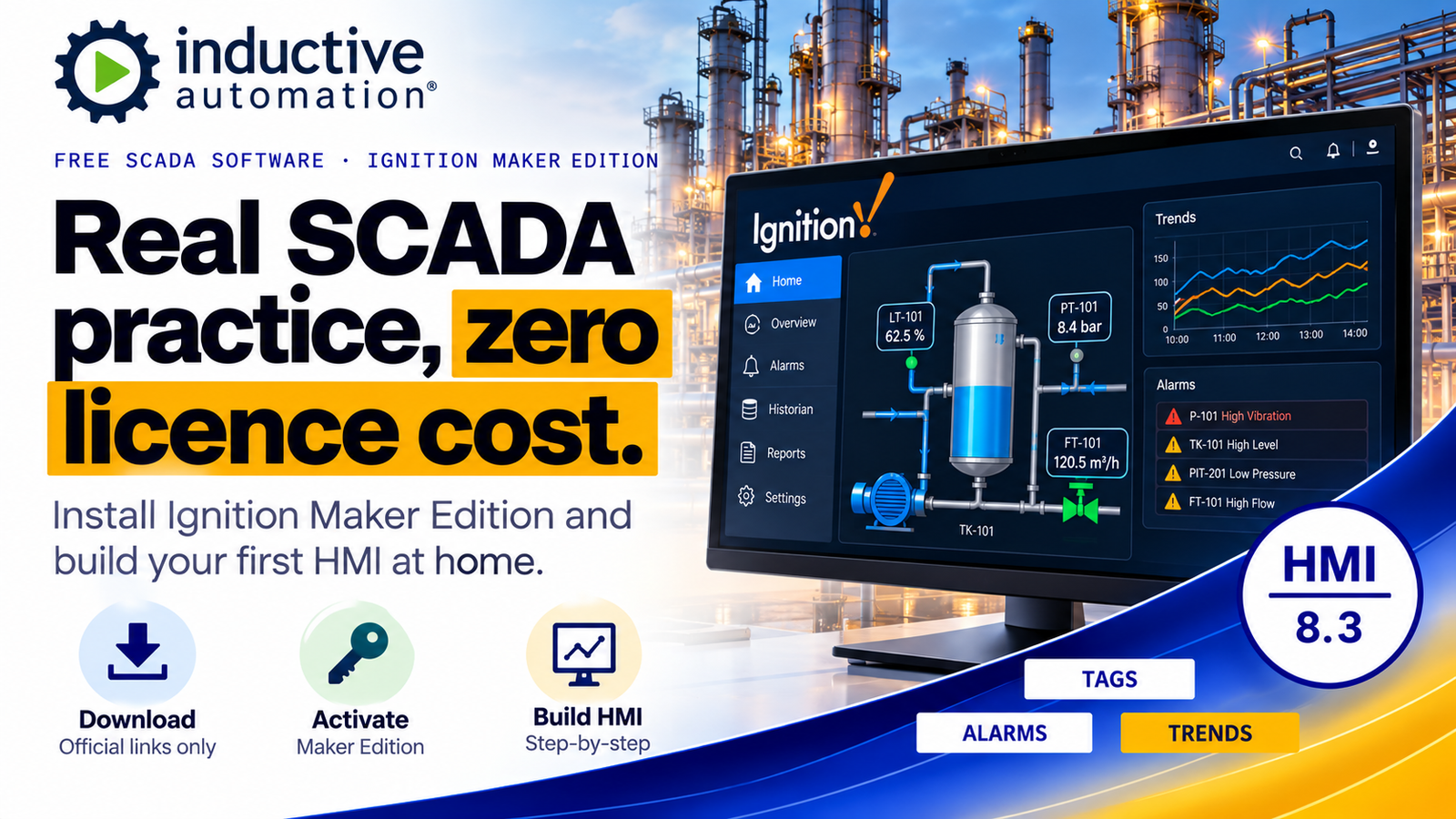
Free SCADA software · Ignition Maker Edition guide
Real SCADA practice, zero licence cost.
Ignition Maker Edition is free SCADA software for personal use. Here is how to install it, activate it and build your first screen at home.
Every automation learner hits the same wall. PLC software comes with trials, but free SCADA software that is both legal and close to what plants actually run is much harder to find.
In my Best SCADA Software post, I picked Ignition by Inductive Automation as my top choice. So this guide is the hands-on follow-up: how to get Ignition Maker Edition for free, straight from the official source.
Below, I cover what Maker Edition includes, what your PC needs, the install steps, and where the free licence stops.
What you’ll take away
What Maker Edition gives you, and what it leaves out
How Maker compares with the trial and a paid licence
Install, commission and activate it in six steps
When you must switch to a paid licence instead
01The edition
Ignition Maker Edition: Free SCADA Software for Personal Use
In Inductive Automation’s own words, “Ignition Maker Edition is Ignition.” It is the same platform, released as a free edition for personal and educational projects. However, it comes with a few clear limits.
| Item | Maker Edition |
|---|---|
| Price | Free, with a licence from your Inductive Automation account |
| Who may use it | Individuals only, for personal and non-commercial use |
| Tags | Up to 10,000 tags per gateway |
| Screens | Perspective, with up to 10 concurrent sessions, while Vision is not included |
| Gateways | Up to three active Maker licences at the same time |
| Support | Community forum only, since there is no phone or email support |
Maker Edition limits as stated on Inductive Automation’s Maker page and documentation.
Even with those limits, the module list is generous. For example, it includes Perspective, OPC UA, SQL Bridge, alarm notification, reporting, historian modules, and drivers for Siemens, Allen-Bradley, Modbus and Omron devices.
Inductive Automation states that there are no differences between resources created with Maker and those used in commercial Ignition. In other words, the skills you build at home carry straight over to a real project.
02Compare
Maker vs Trial vs Paid: Which Ignition Fits You?
Ignition actually has two free ways in, so it helps to see them side by side before you install anything.
| Item | Maker Edition | Standard trial | Paid licence |
|---|---|---|---|
| Cost | Free | Free | As quoted |
| Run time | Continuous while the licence lease is valid | Two hours, then reset as often as you like | Continuous |
| Limits | 10,000 tags, 10 sessions, no Vision | All modules, but they stop after two hours | As purchased |
| Business use | Not allowed | Evaluation | Yes |
Based on Inductive Automation’s Maker page and its licensing and activation documentation.
For learning at home, Maker is the better fit, because your project keeps running without a two-hour reset. On the other hand, if you want to try Vision or evaluate Ignition for your company, the standard trial is the right choice.
03Your PC
System Requirements for This Free SCADA Software
Compared with a full PLC engineering suite, Ignition is light. Still, check these minimum figures from Inductive Automation’s startup guide first.
- Processor: a dual-core processor is the minimum.
- Memory and disk: you need at least 4 GB of RAM and 10 GB of free disk space.
- Permissions: because the installer sets up a Windows service, you need administrator rights.
- Ports: by default, the gateway uses 8088 for HTTP, 8043 for HTTPS and 8060 for the gateway network.
Also, Maker Edition runs on your own computer, and Inductive Automation describes Ignition as cross-platform. So if you prefer Linux or macOS, you can still follow along, although my steps below use Windows.
04Install
How to Install the Free SCADA Software: Step by Step
The current release is Ignition 8.3, a Long-Term Support version launched on 16 September 2025. Here is the full route, from account to Designer, so keep this page open while you install.
- 1Create your free Inductive Automation account. Go to the official Maker Edition page, click to get Maker Edition, and sign up or log in.
- 2Then download Ignition. Use the “Download Ignition” button on the Inductive Automation website, which detects your operating system and offers the right installer.
- 3Next, run the installer. Keep the default directory and gateway service name, choose the “Typical” option, and click Install. When it finishes, the gateway opens in your browser.
- 4After that, commission the gateway. Select Maker Edition, accept the licence terms, create your admin user, keep the default ports, and click “Finish Setup”.
- 5Now activate your Maker licence. Generate a licence in your account, and then enter the key and its activation token on the gateway’s licensing page.
- 6Finally, open the Designer. Log in at http://localhost:8088, then download the Designer Launcher from the gateway webpage, or click “Launch Designer”.
When the gateway starts, it offers a Quick Start option. Say yes, because it adds a device simulator, sample tags, a historian and an alarm journal, so you have live data to work with from minute one.
Activating your Maker licence
A Maker licence key has eight characters and comes with a separate activation token. Inductive Automation calls this type a leased licence, and the token goes into its own field, not after the key.
Also, you can hold up to three active Maker licences. If you delete one to free a slot, the Maker page confirms that your projects are kept.
Keep the gateway online
Leased licences need internet access, because the gateway tries to renew the lease every hour. If it cannot reach the activation service, it keeps trying until a timeout ends. After that, the gateway falls back to trial mode.
For leases generated on or after 20 July 2026, the documented timeout is 72 hours, while older leases had 48 hours. So a weekend offline is fine, but a laptop that stays disconnected for days will drop back to the two-hour trial.
05First project
Your First Project: From Simulator to Screen
Once the Designer opens, resist the urge to build a full plant. Instead, start small and follow this order.
- Browse the simulator tags: if you enabled Quick Start, the device simulator already gives you changing values to watch.
- Build one Perspective view: for example, a tank with a level display, a pump status indicator and a start button.
- Add one alarm: such as a high-level alarm on the tank tag, so that you see how alarms flow to the operator.
- Trend the value: finally, add a chart that uses the historian, because trends are what operators check first when something goes wrong.
After that, connect a real protocol. If Modbus is new to you, my guide to the Modbus protocol with a practical example is a good place to start.
06Your route
Which Route Fits You? Case 1, 2 and 3
The right edition depends on why you are installing Ignition, so here is how I would decide.
If you are learning SCADA, Maker Edition is the ideal starting point. Pair it with the free Inductive University courses, and then build tags, alarms, trends and screens on the Quick Start simulator.
If you own a small PLC or a Modbus device at home, Maker’s built-in drivers let you connect to it. However, keep the gateway online for the lease, and keep the project personal, because Maker is for individuals only.
Inductive Automation states that businesses cannot use Maker Edition, not even for business case demos. So if you are evaluating Ignition at work, use the standard two-hour trial, and buy a licence before the project goes live.
07The big question
Can You Build a Real SCADA at Home With Free SCADA Software?
This is the question I care about most, because a home project only matters if the skills carry over to a job.
What carries over
Almost everything
- Tags, alarms, trends and Perspective screens work the same way.
- OPC UA and the PLC drivers behave as they do in commercial Ignition.
- Your resources match what commercial Ignition uses.
Where Maker stops
Scale and business use
- You get no Vision module, so desktop-style clients stay out of reach.
- With a cap of 10,000 tags and 10 sessions, a large plant will not fit.
- Even a company demo is off-limits.
Free SCADA software will not run your plant, but it will teach you how a real SCADA thinks.
For a fresher, that is exactly the point. When an interviewer asks how you would set up an alarm or a trend, you can describe something you actually built, rather than something you only read about.
08Avoid these
Common Mistakes and Quick Fixes
Most problems with Maker come from a handful of small setup choices. So here are the ones to watch.
Picking Standard at commissioning
If you choose Standard instead of Maker, the gateway runs in two-hour trial mode.
Fix Select Maker Edition during commissioning, and if you already chose wrong, a fresh install is the simplest way back.
Running the gateway offline
Without internet, the lease cannot renew, so after the timeout the gateway drops to trial mode.
Fix Keep the PC online while you work, especially for long sessions.
Port 8088 already in use
When another program holds the port, the gateway moves to the next free one.
Fix Note the port shown at the end of setup, and use that address in your browser.
Looking for Vision
Many older tutorials use Vision, but Maker Edition does not include it.
Fix Follow Perspective tutorials instead, since Perspective is the web and mobile option.
Installing without admin rights
The installer needs administrator privileges to set up the gateway service.
Fix Run it from an account with administrator rights, or ask your IT team.
Using Maker for a work demo
The Maker terms exclude businesses and non-profits, including business case demos.
Fix Use the standard trial for any evaluation at work.
09Learn for free
Free SCADA Software Training: Learn Ignition at No Cost
Of course, the software is only half the story. To get real value from it, use these free and official resources alongside it.
- Inductive University: Inductive University is a free online platform with training videos, knowledge checks and a credential programme.
- The Ignition forum: since Maker is community-supported, the official forum is where you ask questions and get help.
- Ignition Exchange: it lets you study and share ready-made resources, which is a quick way to see how experienced developers build projects.
- My WOIN guides: start with What is SCADA, and then read about OPC UA in industry.
Every download link in this article goes to an official Inductive Automation page, and WOIN does not host or share any software. Since licence terms and limits can change, always check the official Maker Edition page before you install.
Final word
EndNote
Ignition Maker Edition is the best free SCADA software I know for learning at home, because it is the real platform with honest limits. So install it, enable Quick Start, and build one small screen this week.
I keep adding official free-download guides to WOIN. Meanwhile, these articles pair well with this one.
For videos and reels, you can follow WOIN on YouTube and Instagram.
Now over to you: what is the first screen you would build with free SCADA software, a tank, a pump station or something else?
